If you are reading this in 2026, your smartphone is essentially the remote control for your entire life. From holding your digital IDs and mobile wallets to managing your smart home and securing your private communications, our phones contain it all.
With mobile technology continuously evolving, ensuring your device is locked down tightly isn’t just an option, it is an absolute necessity.
Related Posts:
Whether you are rocking the latest iOS operating system or the newest flavor of Android, checking and updating your screen lock settings takes only a few minutes but provides endless peace of mind. In this comprehensive guide, we will walk you through exactly how to check, update, and optimize your screen lock settings on both major platforms today.
Why Checking Your Screen Lock Matters in 2026
Gone are the days when a simple four-digit PIN was enough to keep prying eyes away. As we navigate 2026, tech giants like Apple and Google have introduced robust, AI-driven anti-theft mechanisms and advanced biometric safeguards.
However, these cutting-edge features are only effective if your basic screen lock settings are configured correctly. Regularly checking your screen lock ensures that:
- Your biometrics are up to date: Changes in your appearance (like new glasses or facial hair) won’t lock you out of your own device.
- Auto-lock isn’t draining your battery: A screen that stays on too long invites snoops and kills your battery life.
- Advanced theft protections are active: Features like Apple’s Stolen Device Protection and Android’s Theft Detection Lock rely on a properly secured base lock screen.
Let’s dive into how you can audit your device right now.
How to Check Screen Lock Settings on iOS (Apple iPhone)
Apple has refined its interface over the years, making it incredibly intuitive to manage your security. Here is how you can check and configure your Lock Screen settings on a modern iPhone running the latest iOS.
1. Verifying Your Passcode and Face ID
To ensure your primary defenses are active, you need to dive into the core security menu:
- Open the Settings app (the familiar gray gear icon).
- Scroll down and tap on Face ID & Passcode (or Touch ID & Passcode if you are using an older model or an SE device).
- You will be prompted to enter your current passcode to gain access.
- Here, you can check if Face ID is enabled for Unlocking your iPhone, Wallet, and Passwords.
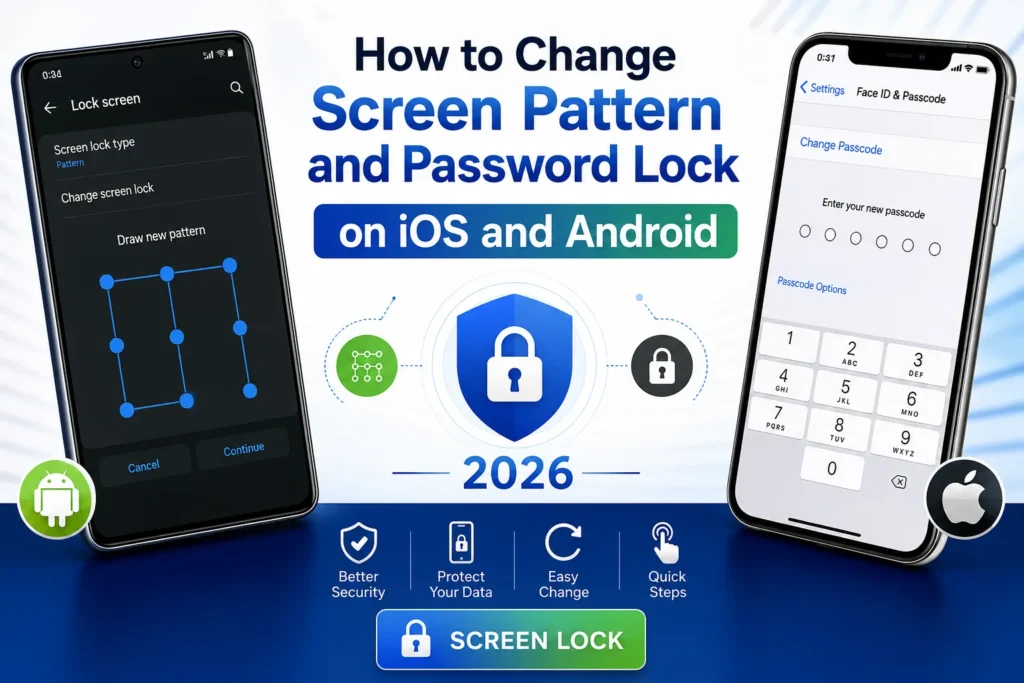
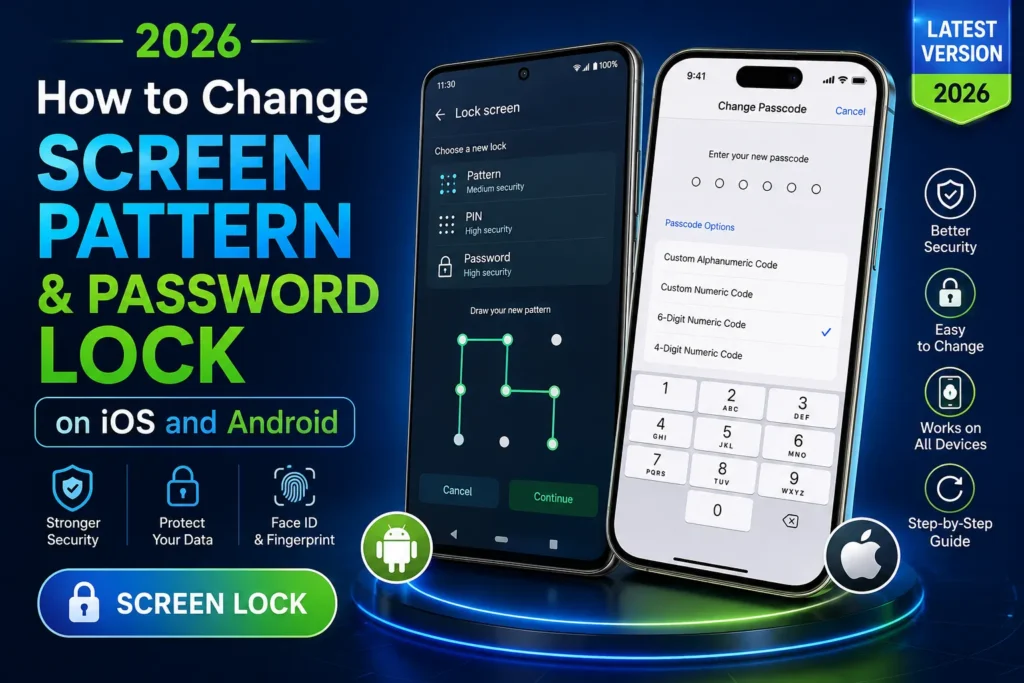
- Scroll down to the Turn Passcode Off or Change Passcode options. If your passcode is only four digits, we highly recommend changing it to a custom alphanumeric code for maximum security in 2026.
Pro Tip: While you are in this menu, look for the Stolen Device Protection toggle. Ensure this is turned On. This feature requires Face ID verification (with no passcode fallback) when accessing sensitive settings away from familiar locations.
2. Adjusting Your Auto-Lock Time
A strong passcode doesn’t help if your phone takes five minutes to lock after you set it down.
- Open the Settings app.
- Tap on Display & Brightness.
- Scroll down and select Auto-Lock.
- Choose a secure time frame. For optimal security and battery life, 30 Seconds or 1 Minute is highly recommended.
How to Check Screen Lock Settings on Android
The Android ecosystem offers immense customization, which is fantastic for personalization but sometimes means settings are tucked away in slightly different places depending on your phone’s manufacturer (like Samsung, Google Pixel, or OnePlus). Generally, on Android 15 and 16, the path is unified under a dedicated privacy hub.
1. Verifying Your PIN, Pattern, or Password
To check your active lock method on a modern Android device:
- Open your Settings app.
- Scroll down and tap on Security and privacy.
- Tap on Device unlock.
- Look at the Screen lock option. It will display your current method (e.g., PIN, Password, or Pattern).
- Tap the gear icon next to Screen lock to check additional settings, such as whether your pattern is visible when drawn, or if your device is set to “Auto-confirm unlock” (which bypasses hitting the “Enter” key for 6-digit PINs).
2. Checking Biometrics and Screen Timeout
Next, you’ll want to ensure your phone is going to sleep quickly when not in use.
- Go back to the main Settings menu.
- Tap on Display (or Display & touch).
- Select Screen timeout.
- Set this to 30 seconds or 1 minute.
- Bonus: Enable Screen attention if your phone supports it. This brilliant feature keeps your screen on as long as you are physically looking at it, but instantly begins the timeout countdown the second you look away.
If you want to adjust how long the phone waits to actually lock after the screen times out, navigate back to Security and privacy > Device unlock > Screen lock gear icon and tap Lock after screen timeout. Set this to “Immediately” for the best security.
Best Practices for Bulletproof Security in 2026
Checking your settings is step one. Step two is adopting modern habits to outsmart today’s security threats:
- Ditch the 4-Digit PIN: In an era of advanced shoulder-surfing and AI-assisted guessing, a 4-digit PIN is outdated. Upgrade to a 6-digit PIN at minimum, or better yet, a complex alphanumeric password.
- Hide Sensitive Notifications: A locked screen is useless if a thief can read your banking alerts or password-reset text messages right from the Lock Screen. On both iOS and Android, dive into your Notification settings and choose to hide notification contents until the device is unlocked.
- Leverage Trusted Environments (Wisely): Android’s “Extend Lock” allows your phone to stay unlocked in trusted places (like your home) or when connected to trusted Bluetooth devices (like your car or smartwatch). Use this sparingly, ensuring you only set hyper-secure locations.
Final Words of Mine
Your smartphone is the vault holding your digital life. As we embrace the conveniences of 2026, taking two minutes to navigate through your device’s settings and verify your screen lock can be the difference between a minor inconvenience and a major digital disaster. Grab your phone right now, follow the steps above, and ensure your virtual front door is firmly locked.