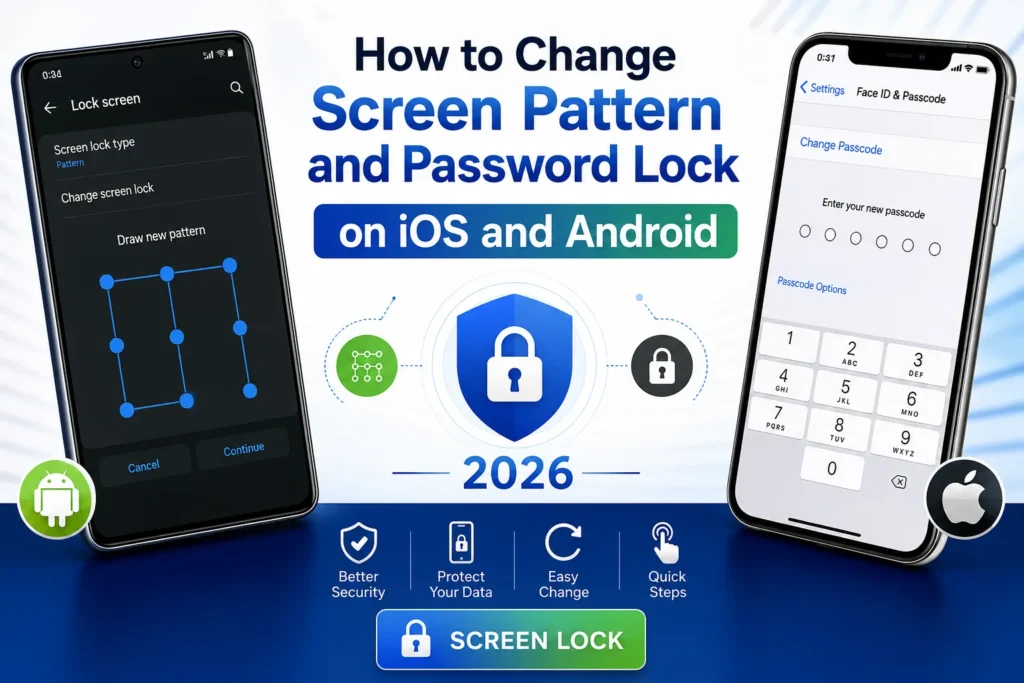
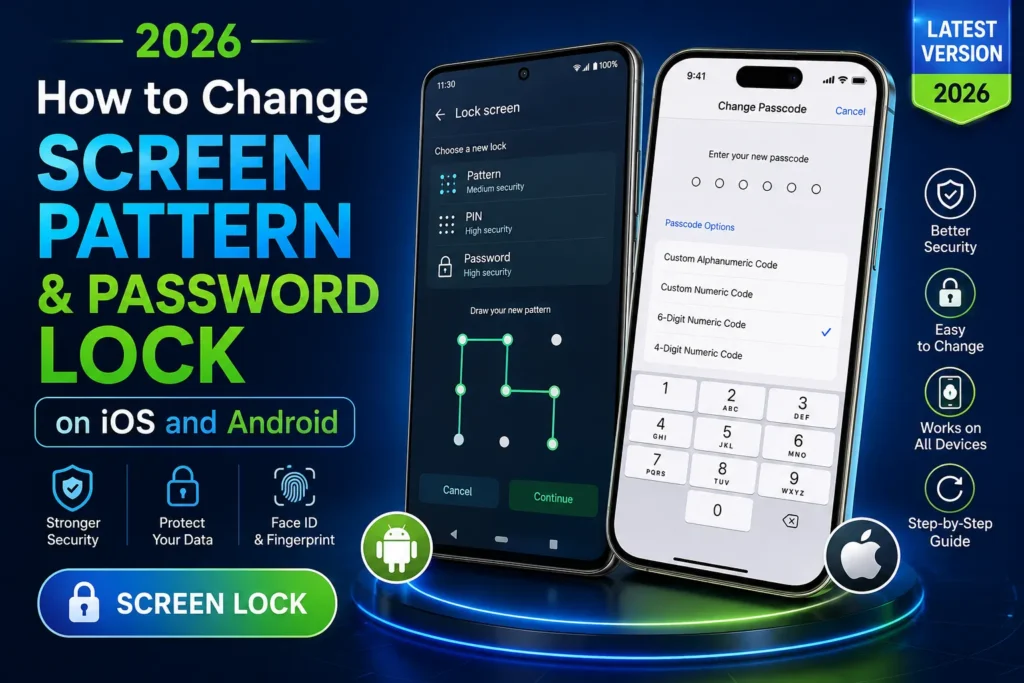
Forgetting your phone’s screen lock can feel incredibly stressful. Whether it’s a simple pattern on your Android or a strong passcode on your iPhone, it happens to the best of us.
In 2026, both iOS and Android have strong security features to protect your data, which means unlocking a forgotten lock usually involves specific steps, and often a factory reset. But don’t worry! This easy-to-follow guide walks you through the safest and most effective methods for both platforms.
Related Posts:
We’ll cover practical solutions, important warnings, and tips to prevent this in the future. Always back up your phone regularly so you can recover your photos, apps, and files afterward.
Why Unlocking Forgotten Locks Is Tricky in 2026
Modern smartphones use advanced encryption and biometric security like Face ID, Touch ID, and fingerprint sensors. These protect your information but make recovery harder if you forget your pattern, PIN, or password. There are no magic “bypass” tricks that work reliably without risks. The good news? Official tools from Google, Samsung, and Apple make the process straightforward if you follow the right steps.
Important Note: Most methods will erase your data. If you have a recent backup (iCloud for iPhone or Google Drive for Android), you’ll be able to restore everything after unlocking.
How to Unlock Android Screen Lock (Pattern, PIN, or Password)
Android devices from Samsung, Google Pixel, and others offer several recovery options.
Step 1: Try Biometrics First If you set up fingerprint, face unlock, or Extend Unlock (trusted places or devices), use them right away. These often work even when you forget the pattern. Restart your phone if needed, sometimes biometrics still function after a reboot.
Step 2: Use Samsung Find My Mobile (Best for Galaxy Users)
- On another phone or computer, go to findmymobile.samsung.com.
- Log in with your Samsung account.
- Select your locked device.
- Choose “Unlock” and confirm with your account password. This can remove the lock remotely without always erasing data, as long as you enabled the feature beforehand and the phone is online.
Step 3: Google Find Hub (Works on Most Android Phones)
- Visit android.com/find in any browser.
- Sign in with the Google account linked to your phone.
- If your device shows as online, select it and choose “Erase Device” (this removes the lock but deletes your data).
- After erase, set up the phone again and sign in with the same Google account. This is reliable but results in data loss.
Step 4: Factory Reset Using Recovery Mode If the phone is offline:
- Turn off your device completely.
- Press the correct button combination for your model (example: Volume Up + Power for many Samsung phones; check your model online if unsure).
- In Recovery menu, select “Wipe data/factory reset” using volume keys and confirm with the power button.
- Reboot the system. You’ll need to go through initial setup and may face Factory Reset Protection (FRP) just enter your Google credentials.
Older Devices Only: On very old Android versions (rare now), try entering the wrong pattern 5 times to see a “Forgot Pattern” option, then sign in with Google.
How to Unlock iPhone Passcode (iOS Devices)
Apple makes iOS very secure, so you’ll usually need to erase the device.
Step 1: Use Previous Passcode (No Data Loss – Great Option!) If you changed your passcode recently (within 72 hours on iOS 17 and later):
- Keep entering wrong codes until you see “iPhone Unavailable” or “Security Lockout.”
- Tap “Forgot Passcode?” at the bottom.
- Select “Enter Previous Passcode” and type your old one.
- Set a new, easier-to-remember passcode. This is the easiest way when it works!
Step 2: Erase iPhone from the Lock Screen
- On newer iOS (15.2 and above), after multiple wrong attempts:
- Tap “Forgot Passcode?” or “Erase iPhone.”
- Enter your Apple ID password.
- Confirm the erase. The phone will reset.
Step 3: Use iCloud Find My (Remote Method)
- Go to icloud.com/find on any device.
- Sign in with your Apple ID.
- Select your iPhone and click “Erase iPhone.”
- Follow prompts. This requires the phone to be online and Find My enabled beforehand.
Step 4: Recovery Mode with a Computer
- Connect your iPhone to a Mac or PC with a cable.
- Force it into Recovery Mode (button steps vary by model, for iPhone 8 and newer: quick Volume Up, quick Volume Down, then hold Side button).
- On your computer, open Finder (Mac) or Apple Devices app (Windows) and choose “Restore.” This installs fresh iOS and removes the lock.
After erasing, set up as new or restore from backup. You’ll need your Apple ID to complete Activation Lock.
Tips to Avoid Forgetting Your Lock in the Future
- Use biometrics as your main unlock method.
- Create a strong but memorable passcode or pattern.
- Enable automatic backups to iCloud or Google One.
- Write down your lock in a secure password manager (not on the phone).
- Turn on Find My / Find My Device features now.
- For families, consider shared Apple ID or Google Family Link carefully.
Final Thoughts
Unlocking a forgotten screen pattern or password in 2026 is manageable with the right steps, but prevention is always better. Start with the simplest option for your device, biometrics or previous passcode, before moving to erase methods. If you’re uncomfortable with any step, visit an authorized service center with proof of ownership.
Stay calm, follow the guide, and you’ll be back into your phone soon. Have a backup plan ready for next time, and enjoy your device worry-free!