Smartphones store our personal photos, banking apps, emails, documents, and private conversations. That is why using a strong screen lock is one of the most important security measures in 2026.
Whether you use an Android smartphone or an iPhone, changing your screen pattern, PIN, or password regularly helps keep your data safe from unauthorized access.
Related Posts:
In this guide, you will learn how to change your screen pattern and password lock on both Android and iPhone devices, along with useful security tips to better protect your smartphone.
Why You Should Change Your Screen Lock
Changing your screen lock every few months can improve your phone’s security. If someone has seen your password or pattern, updating it immediately prevents unauthorized access. A strong screen lock also protects your banking apps, social media accounts, digital wallets, and personal files.
Many smartphones now support fingerprint and face unlock, but they still require a secure PIN or password as a backup. Security experts also recommend using a strong password instead of simple or predictable combinations.
How to Change Screen Pattern or Password on Android
The exact menu may vary slightly depending on your phone brand such as Samsung, OnePlus, Xiaomi, Motorola, Vivo, Oppo, or Google Pixel, but the process is generally similar.
Step 1: Open Settings
Unlock your phone and open the Settings application.
Step 2: Open Security Settings
Scroll down and tap Security, Security & Privacy, or Lock Screen, depending on your device.
Step 3: Select Screen Lock
Tap Screen Lock or Device Lock.
Step 4: Enter Current Lock
If your phone already has a PIN, pattern, or password, enter it to continue.
Step 5: Choose a New Lock Type
You can select one of the following options:
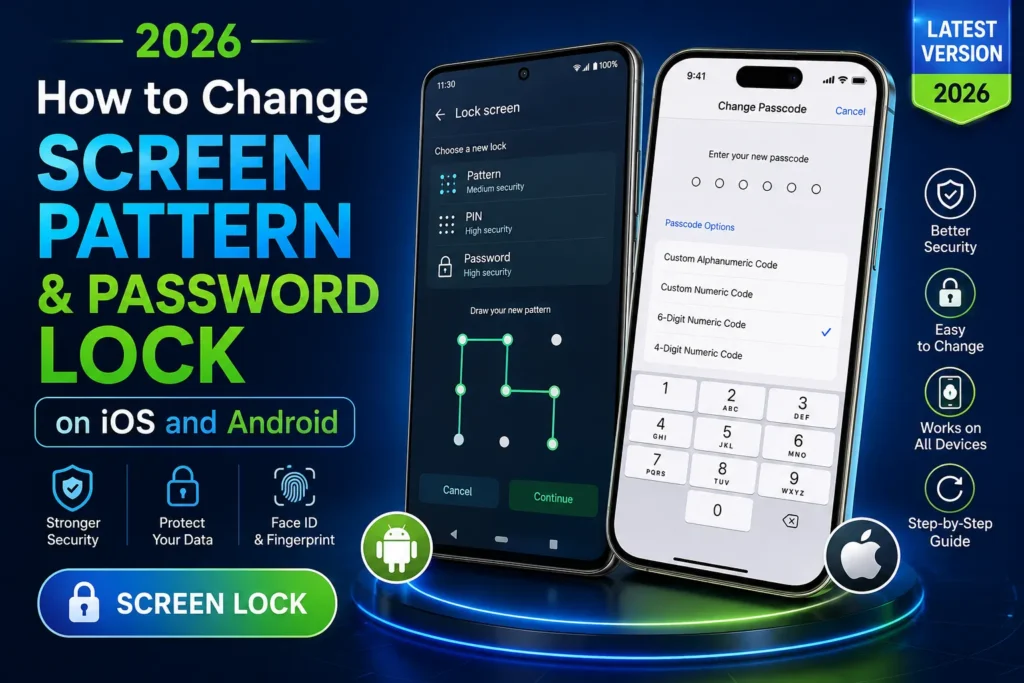
- Pattern
- PIN
- Password
Choose the option that best suits your needs.
Step 6: Create Your New Lock
Draw a new pattern or enter your new PIN or password. Confirm it by entering it again.
Your Android phone will now use the new screen lock immediately.
How to Change Password Lock on iPhone
Apple uses a passcode instead of the Android pattern lock. If your iPhone supports Face ID or Touch ID, the passcode remains the primary security method.
Step 1: Open Settings
Go to Settings on your iPhone.
Step 2: Open Face ID & Passcode
If your iPhone has Face ID, tap Face ID & Passcode.
For older iPhones with a Home button, tap Touch ID & Passcode.
Step 3: Enter Current Passcode
Enter your existing passcode to continue.
Step 4: Tap Change Passcode
Select Change Passcode.
Step 5: Create a New Passcode
Enter your current passcode once more, then create a new one.
You can also tap Passcode Options to choose between:
- Custom Alphanumeric Code
- Custom Numeric Code
- 6-Digit Numeric Code
- 4-Digit Numeric Code
After confirming the new passcode, your iPhone will start using it immediately.
Pattern, PIN, or Password: Which One Is Better?
Each lock type offers different levels of security.
Pattern Lock
- Quick and easy to unlock
- Convenient for daily use
- Can sometimes be guessed if the pattern is simple
PIN Lock
- Easy to remember
- Faster than typing a password
- A 6-digit or longer PIN provides better security
Password Lock
- Highest level of protection
- Supports letters, numbers, and symbols
- Best for users storing sensitive information
For most users in 2026, a strong 6-digit PIN or a long password offers better protection than a simple unlock pattern.
Extra Tips to Keep Your Phone Secure
Besides changing your screen lock, follow these tips:
- Avoid using birthdays or simple number combinations.
- Never share your password or PIN with others.
- Enable Fingerprint or Face Unlock for faster access.
- Turn on Find My Device (Android) or Find My iPhone.
- Install software updates regularly.
- Lock your phone immediately if it is lost.
- Enable automatic screen lock after a short period of inactivity.
These simple habits significantly improve your phone’s overall security.
What If You Forget Your Password?
If you forget your screen lock, you may need to reset your device using your Google Account or Apple Account, depending on your device and security settings. In many cases, recovering access without the correct credentials may erase your stored data, making regular backups very important.
Final Thoughts
Changing your screen pattern or password lock is one of the easiest ways to improve smartphone security in 2026. Both Android and iPhone allow you to update your lock within a few minutes through the Settings app. Whether you prefer a pattern, PIN, or password, choose a strong option that is difficult for others to guess but easy for you to remember.
Regularly updating your screen lock, enabling biometric authentication, and keeping your device updated will help protect your personal information, financial apps, and digital identity from unauthorized access.